EcommerceIQ — Market Insights Ai-ssistance

Campaign Frame

One PSD, one spreadsheet — every creative in the campaign, on brand and in Thai.

A step-by-step guide

01

Start here

What it is, where it lives, and what a run costs

Ai-ssistance EcommerceIQ — Market Insights
How it works

Four steps, one sheet

Your agency's master PSD becomes a locked background; you draw slots on top of it and give each one a name; your spreadsheet fills those slots once per row.

Master PSD
your campaign
→
Slots + roles
ImageTextIcon
→
Your spreadsheet
Row 1Row 2Row 3
→
One image per row
Image 1Image 2Image 3
1 · Upload PSD Master frame from your agency
2 · Build Layout Draw & assign slots
3 · Map Data Bind sheet columns
4 · Generate Render every row
Ai-ssistance EcommerceIQ — Market Insights
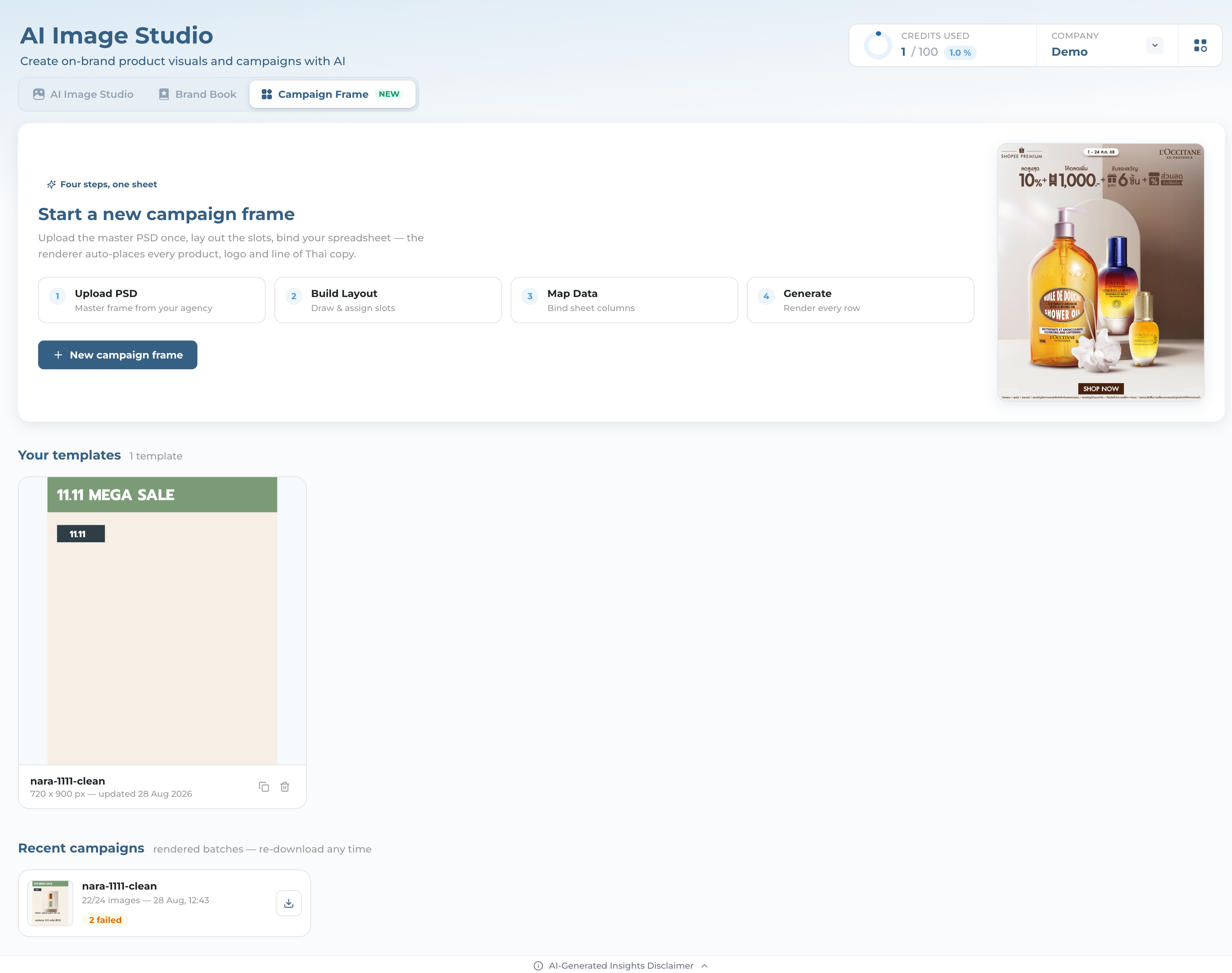
The Campaign Frame landing tab, showing the four-step hero, one saved template named nara-1111-clean, and a recent campaign card marked 22/24 images with 2 failed
Where to find it

AI Image Studio › Campaign Frame

  • In the sidebar, open AI Image Studio — Campaign Frame is its third tab, marked NEW.
  • The page title stays "AI Image Studio" while you work. That is expected; Campaign Frame is a tab, not a page.
  • Old links still work — /campaign-frame bounces you to the right tab.
  • The landing screen shows Your templates and Recent campaigns once you have some. On day one you see only the hero.
Ai-ssistance EcommerceIQ — Market Insights
Credits

One credit per batch — whatever the row count

A batch of 500 rows and a batch of one row cost exactly the same — charged only once every row has finished, never up front.

1 credit, 1–500 rows The price is per batch, not per image. The UI only says "Cost: 1 credit", which is easy to read as per-image. It is not.
All rows failed? Free. A batch where nothing rendered costs nothing.
Partial still costs one If some rows succeed and some fail, the batch lands as "completed with errors" and costs the same single credit.
Proofs are free Render row 1 through the real pipeline as often as you like — it never costs a credit.
Ai-ssistance EcommerceIQ — Market Insights
Before you start

What makes a good master PSD

Campaign Frame flattens the PSD into a locked background — whatever is baked into the artwork can never be changed per row.

Leave the slots empty Anything you type into the PSD becomes part of the background. Leave space where the product, the name and the price will go, and add those as slots in the editor.
RGB, with a composite Save as RGB and tick "Maximize Compatibility". CMYK files and files without an embedded composite are refused, with a message naming the Photoshop menu.
Within the limits Up to 200 MB and 8000 px on the longest side.
One PSD, one template A PSD already used by another live template is refused on re-upload — export a fresh copy first.

Ai-ssistance EcommerceIQ — Market Insights
02

Step 1 · Upload PSD

The master frame becomes a locked background

Ai-ssistance EcommerceIQ — Market Insights
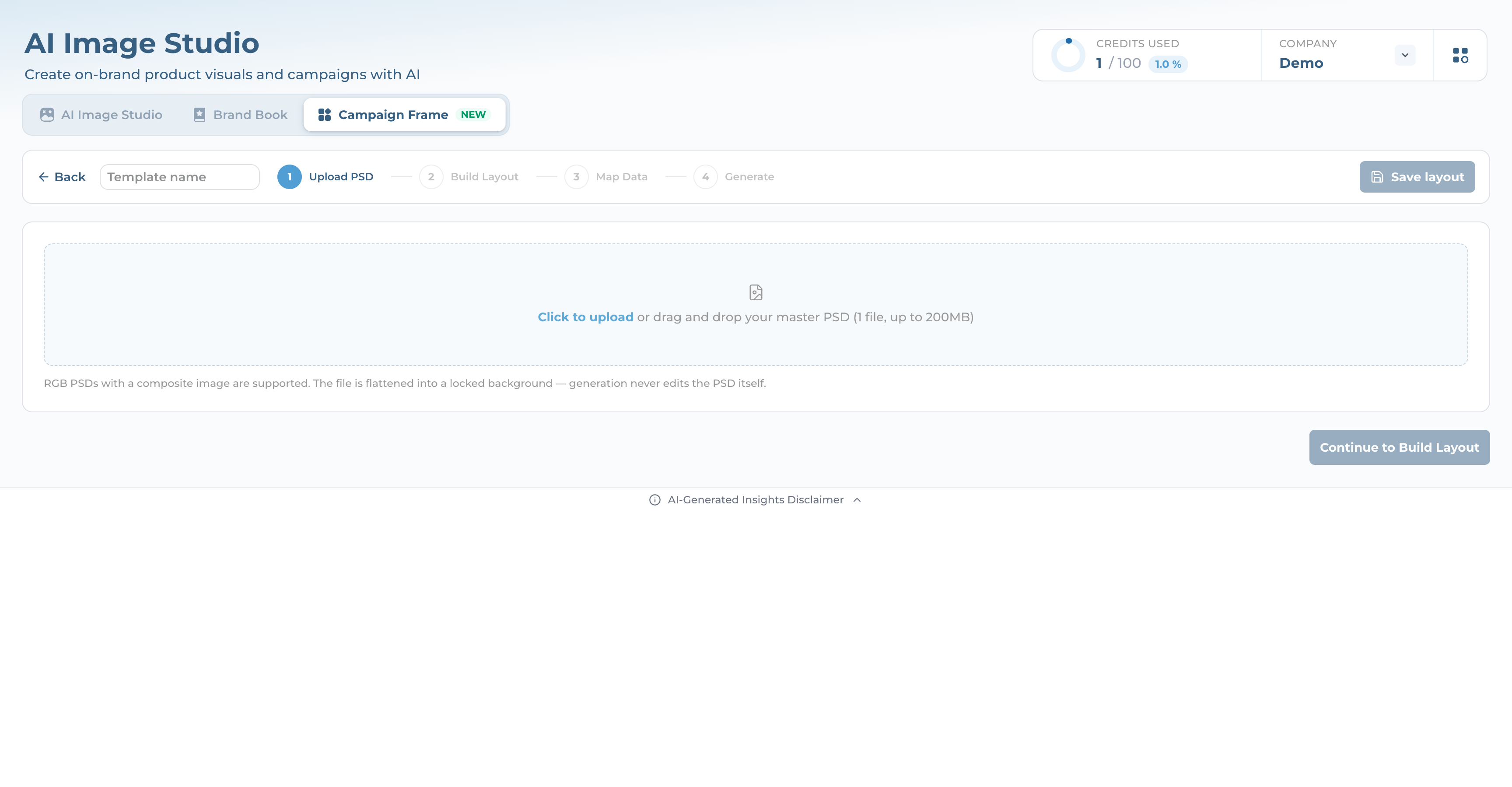
The Upload PSD step, showing an empty dropzone for the master PSD and a greyed-out Continue to Build Layout button
Step 1

Drop the PSD in

  • The dropzone takes one file: "Click to upload or drag and drop your master PSD (1 file, up to 200MB)".
  • Upload runs through three phases — requesting the upload URL, uploading, then "Processing PSD (flatten + validate)".
  • On success it moves you straight to Build Layout; you never click Continue on a fresh upload.
  • Text and smart-object layers in the PSD are pulled out as a starting set of slots, best-effort.
Rejected? "CMYK PSD is not supported — please export as RGB (Image > Mode > RGB Color)" or "PSD has no embedded composite — re-save with "Maximize Compatibility" enabled". Both messages tell you the exact fix.
Ai-ssistance EcommerceIQ — Market Insights
03

Step 2 · Build Layout

Draw the slots and name them

Ai-ssistance EcommerceIQ — Market Insights
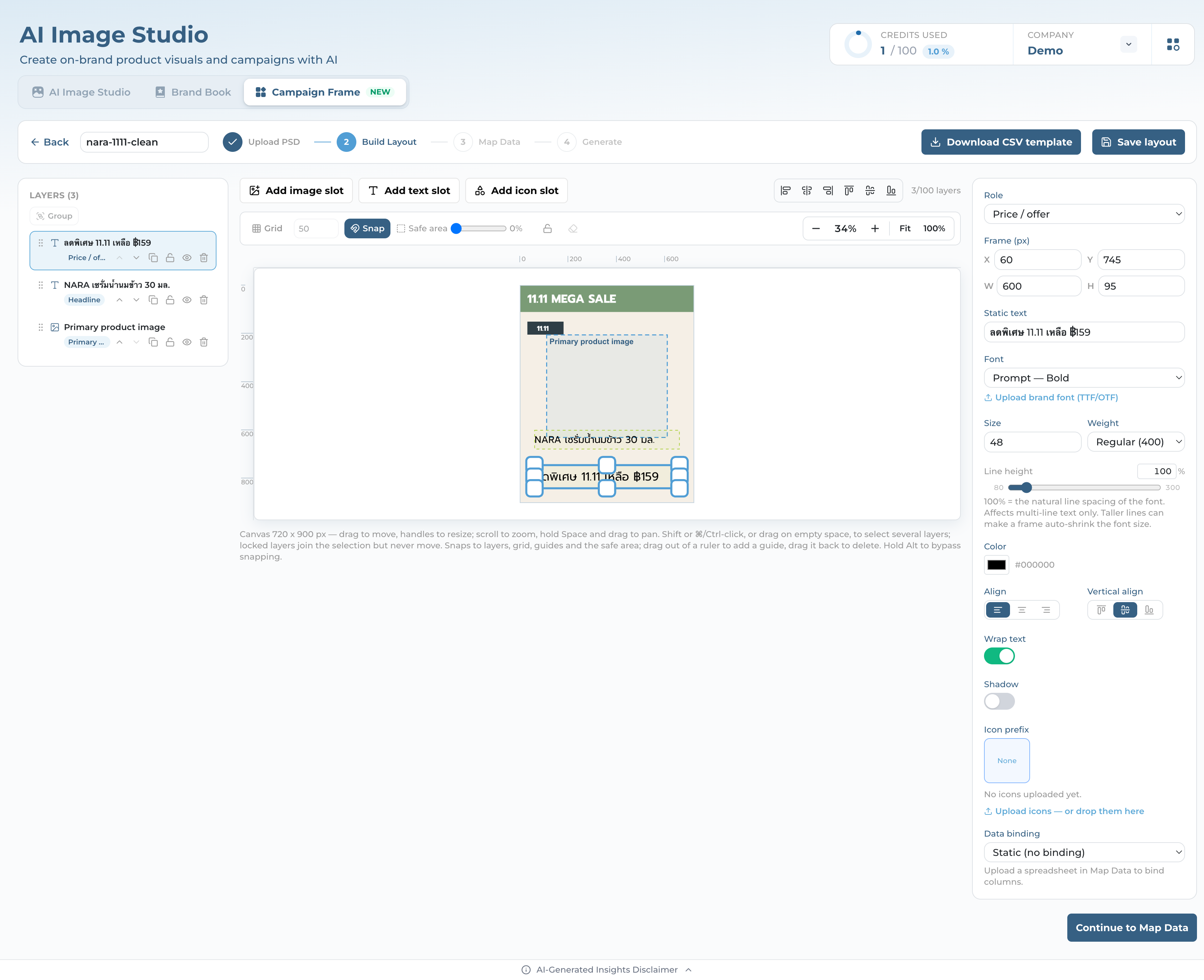
The Build Layout canvas with a Price / offer text layer selected, its layers panel on the left and its text properties — font, size, color — on the right
Step 2

Three panels

  • Canvas in the middle — drag to move, handles to resize, scroll to zoom, hold Space and drag to pan.
  • Layers on the left, top-most first, like Photoshop. Drag to restack; that is what controls what covers what.
  • Properties on the right, for whichever layer is selected.
  • It snaps to layers, grid, guides and the safe area. Hold Alt to bypass snapping; drag out of a ruler to add a guide.
Ai-ssistance EcommerceIQ — Market Insights
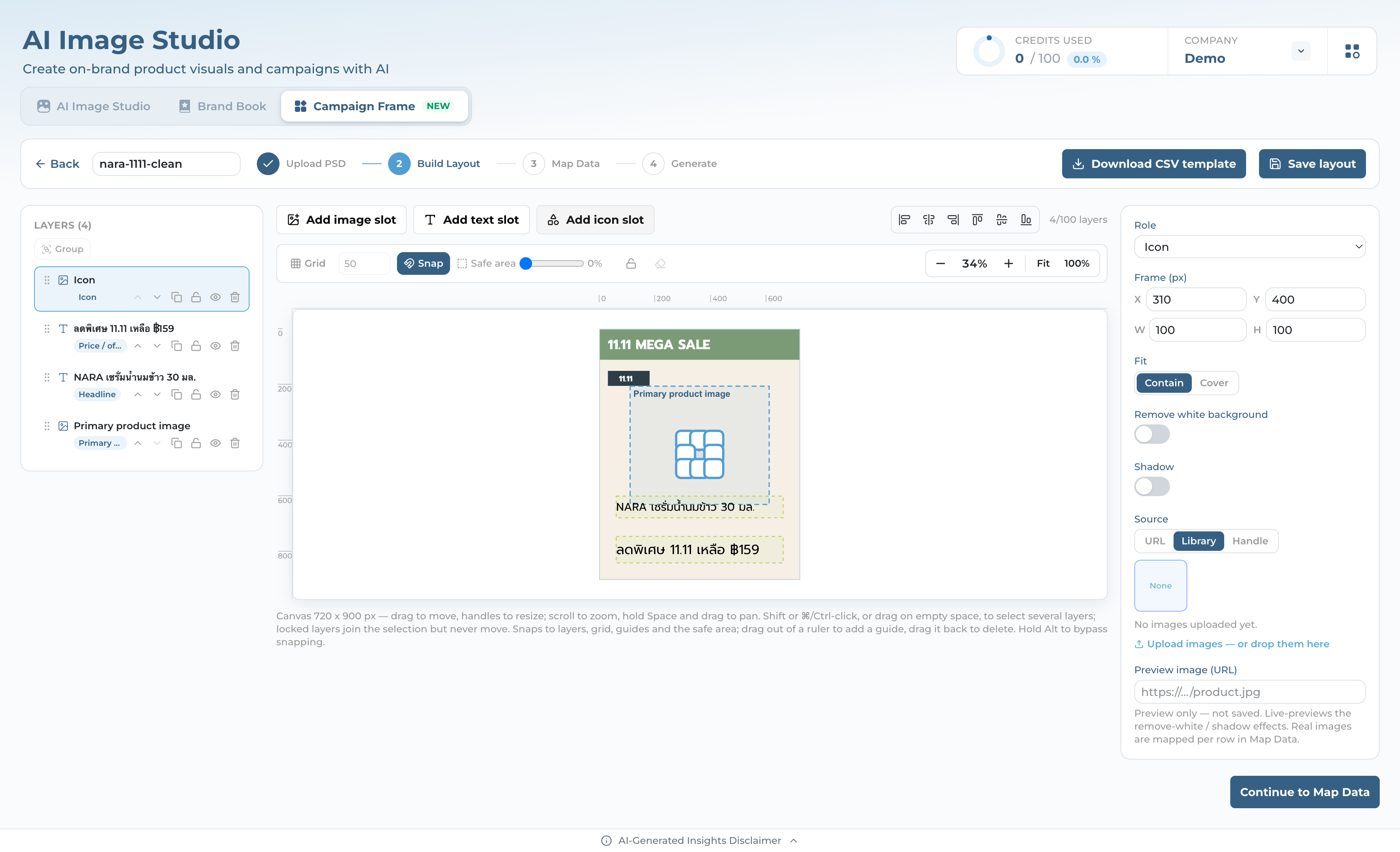
The Build Layout canvas with a new Icon slot selected, the Role dropdown set to Icon and the Source panel set to Library with no icon uploaded yet
Step 2

Add a slot, give it a role

  • Three add buttons: image slot, text slot, icon slot. Up to 100 layers per template.
  • An icon slot is just an image slot that starts small and centred, and looks in your library first.
  • Pick a role from the dropdown. A role already used elsewhere shows " — in use" — that is advice, not an error.
  • A text slot starts with the placeholder "Sample text" until you bind a column to it.
Ai-ssistance EcommerceIQ — Market Insights
Roles

The 12 image roles

Pick the one that describes what goes in the slot.

Background image Brand logo Product logo Primary product image Secondary image Picture frame Call-to-action background Figurative image Description image Headline image Other image Icon
"Background image" is not the backdrop. The backdrop is the PSD you uploaded. This role is just a label for a slot that happens to hold a background-ish picture.
Ai-ssistance EcommerceIQ — Market Insights
Roles

The 6 text roles — and what a role really does

Six labels for what a text slot holds, in the editor's own order.

Headline Subheadline Price / offer Body text Terms Other text
A role names a column Role labels become the column headers in the spreadsheet you download. Two "Secondary image" slots give you "Secondary image" and "Secondary image 2".
It does not change the render Roles do not affect size, fit, or what covers what. Stacking comes from the Layers panel; size comes from the frame.
One role is required Every template needs one visible Primary product image layer. The other seventeen are optional.
Repeats keep their number The number is fixed when you create the layer, so re-ordering slots never renames a column you already filled in.
Ai-ssistance EcommerceIQ — Market Insights
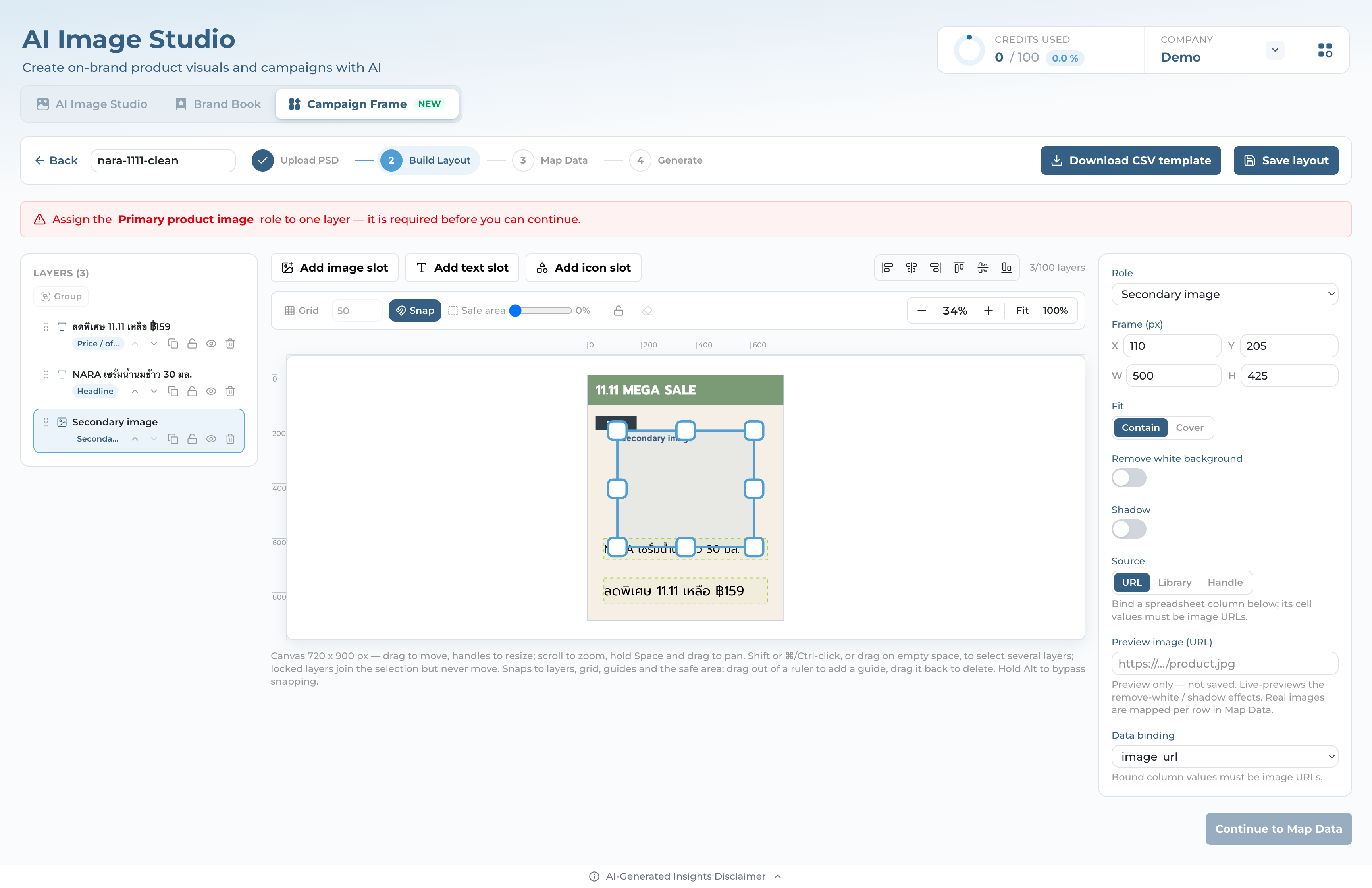
The Build Layout screen showing a red banner that reads Assign the Primary product image role to one layer, with a Secondary image layer selected instead
Step 2

The one required role

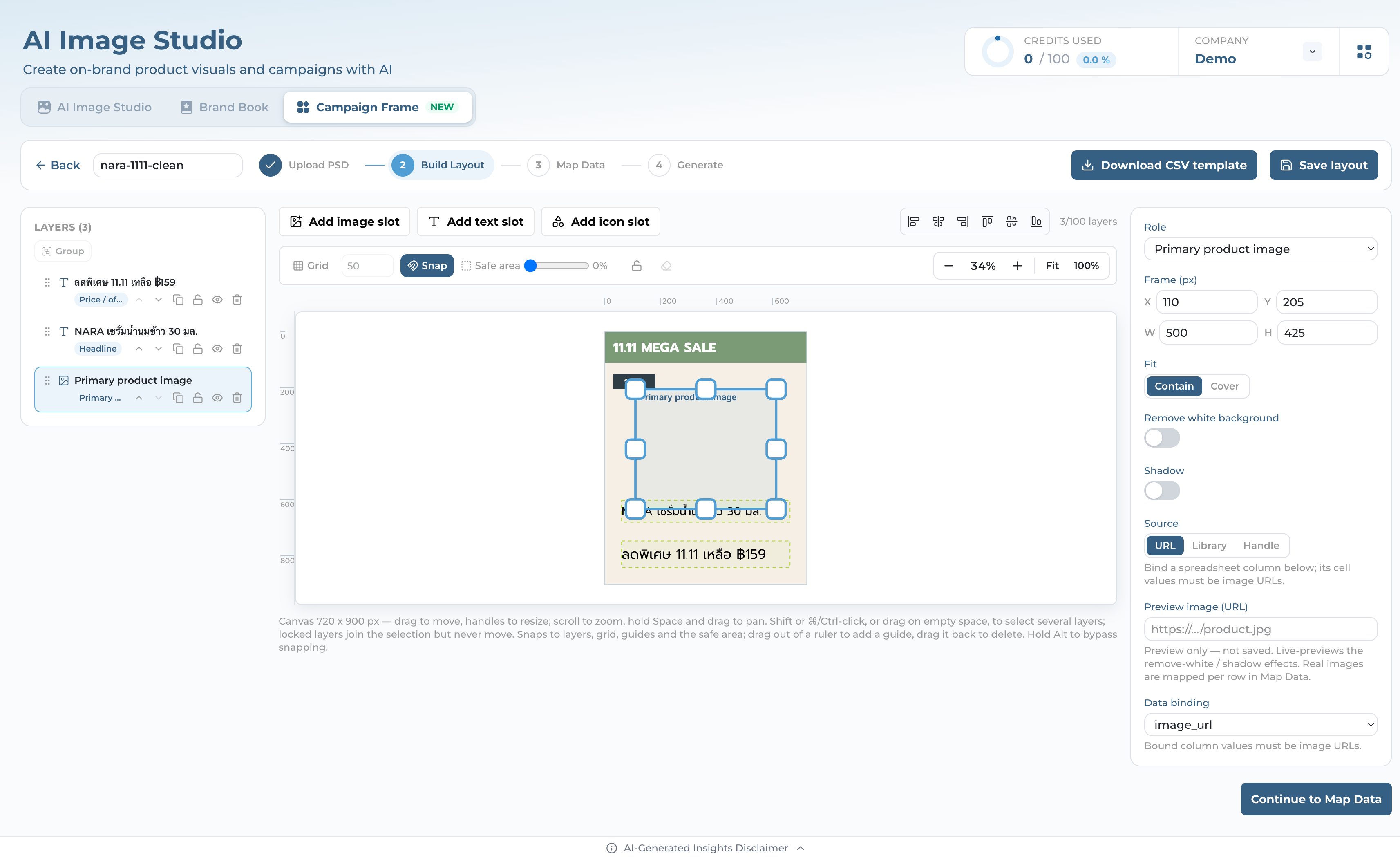
  • Continue stays greyed out until one layer carries the Primary product image role.
  • The banner says it outright: "Assign the Primary product image role to one layer — it is required before you can continue."
  • A hidden layer does not count. If the banner is still there and you can see the layer, check whether its eye is switched off.
  • The server checks again at generation, so this cannot be skipped.
Ai-ssistance EcommerceIQ — Market Insights
The Build Layout properties panel for the Primary product image layer, with Source set to URL and Data binding set to the image_url column
Step 2

Where each image comes from

  • URL — the spreadsheet cell holds a link to the picture. Use this for product shots.
  • Library — one fixed image for every row. Use this for a logo.
  • Handle — the cell holds the name of an image in your library, so it varies per row.
  • Handles are matched exactly, lowercase with dashes: "summer-sale", not "Summer Sale.png". The editor lists the valid ones next to the field — click one to copy it.
Library uploads are PNG, JPEG or WebP, up to 5 MB. We read what the file actually is, so renaming an SVG to .png will not get it in. An SVG can still be artwork through a URL column.
Ai-ssistance EcommerceIQ — Market Insights
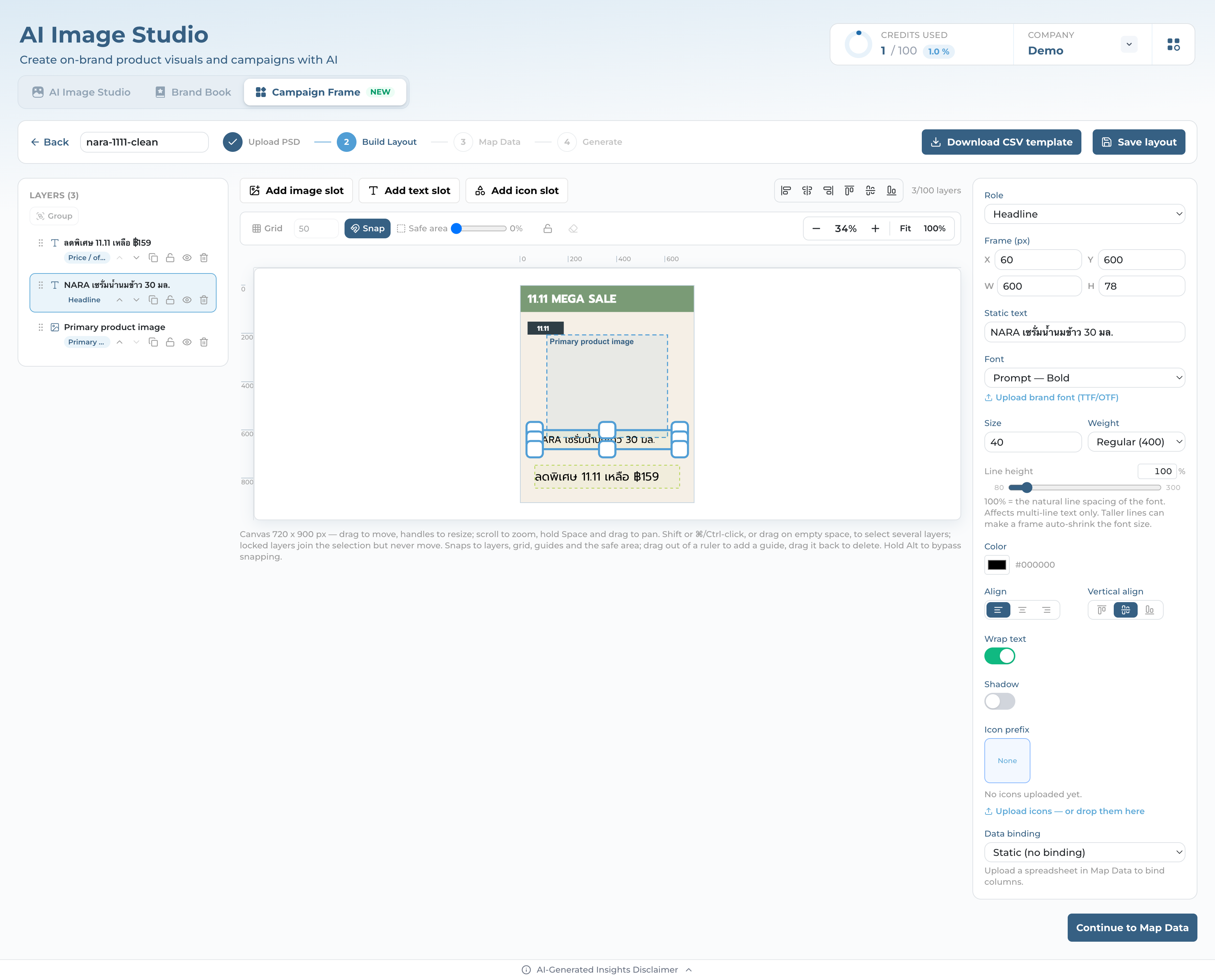
The Build Layout properties panel for a Headline text layer with Thai static text, the Font dropdown set to Prompt — Bold and an Upload brand font link below it
Step 2

Fonts and Thai text

  • Upload the brand's TTF or OTF. Font collections (.ttc) are not supported.
  • Two weights are offered — Regular and Bold. A variable font gives you those two anchors and nothing in between.
  • Thai coverage is scored on upload. Below 100% you get a warning, and some characters will not draw.
  • Text that does not fit is shrunk automatically, down to a floor you set. A single-line slot is then trimmed with "…" rather than allowed to spill.
Ai-ssistance EcommerceIQ — Market Insights
04

Step 3 · Map Data

Point every slot at a column

Ai-ssistance EcommerceIQ — Market Insights
Your spreadsheet

Preparing the sheet

One row per output image; one column per slot you want to vary.

Start from the template Download CSV template in the workspace header writes a header row that already matches your slots.
Prefer CSV A date typed into an .xlsx comes back as 2026-08-27T00:00:00.000Z on the finished artwork. CSV keeps every cell exactly as typed, leading zeros in SKUs included.
500 rows, 40 columns Anything past that is dropped quietly at import — no warning. Split a bigger campaign into several batches.
Image cells hold links For a URL slot, the cell is a full https link. For a Handle slot, it is the library handle.
Ai-ssistance EcommerceIQ — Market Insights
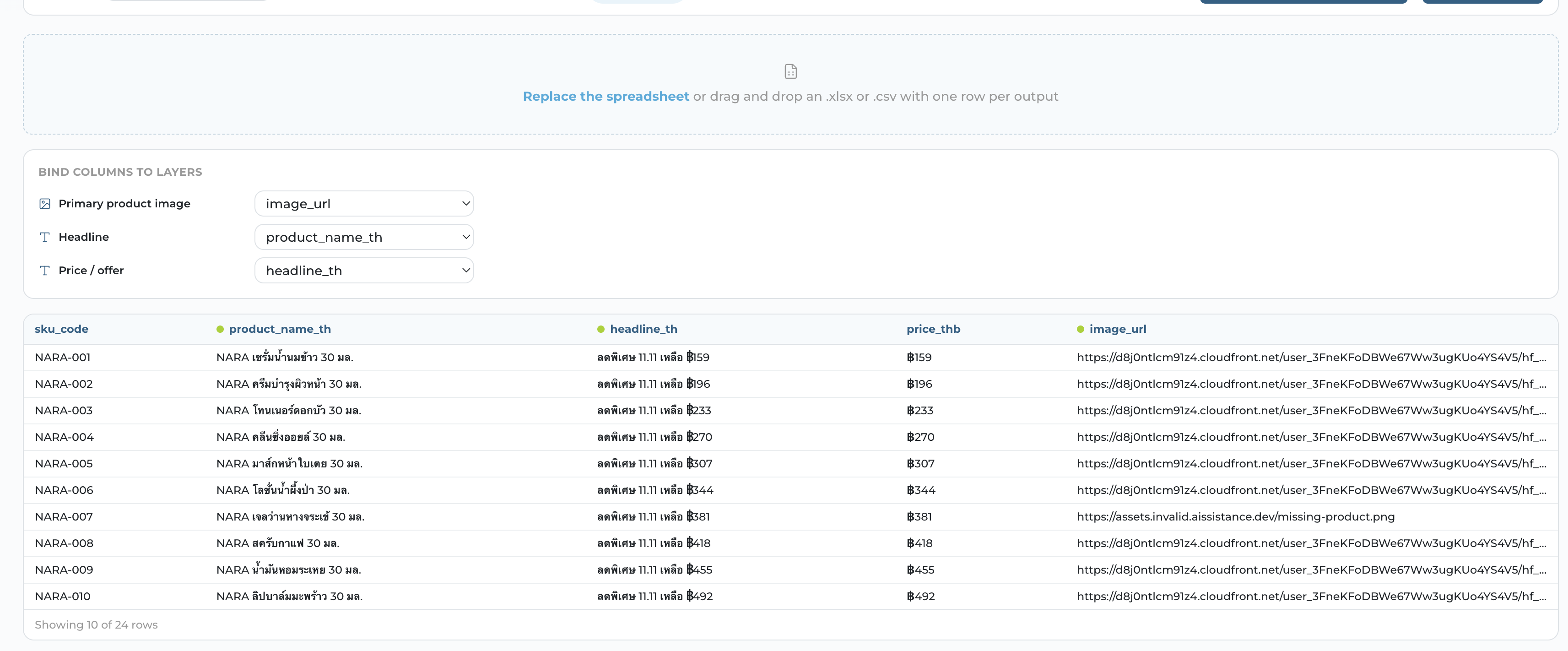
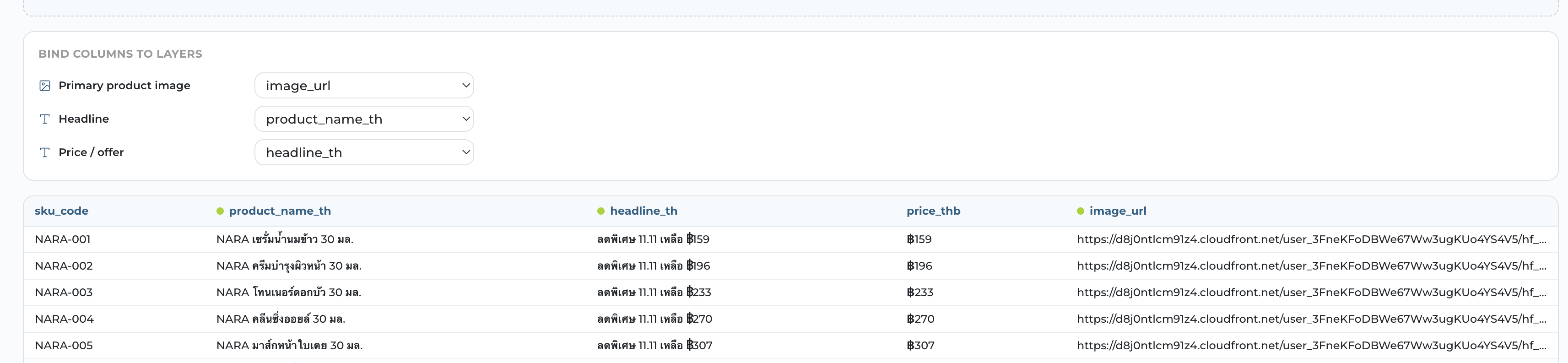
The Map Data step showing the bound columns for three layers above a spreadsheet preview table, with the footer reading Showing 10 of 24 rows
Step 3

Upload the sheet

  • "Click to upload or drag and drop an .xlsx or .csv with one row per output".
  • The preview shows the first 10 rows and the footer counts the rest.
  • A green dot on a column header means something is bound to it.
  • Uploading a new file replaces the old one — bindings are kept by column name.
Ai-ssistance EcommerceIQ — Market Insights
The Bind columns to layers table mapping Primary product image, Headline and Price / offer to spreadsheet columns, with green dots marking the bound column headers below
Step 3

Bind every column

  • One dropdown per slot, labelled by its role. Pick the column that fills it.
  • Nothing forces you to bind anything — you can reach Generate with zero bindings and render the same image N times. Check the list before moving on.
  • A text slot with no binding falls back to its static text.
  • Re-download the CSV template after adding slots; the column order follows the layer stack.
Ai-ssistance EcommerceIQ — Market Insights
05

Step 4 · Generate

Proof one row, then render them all

Ai-ssistance EcommerceIQ — Market Insights
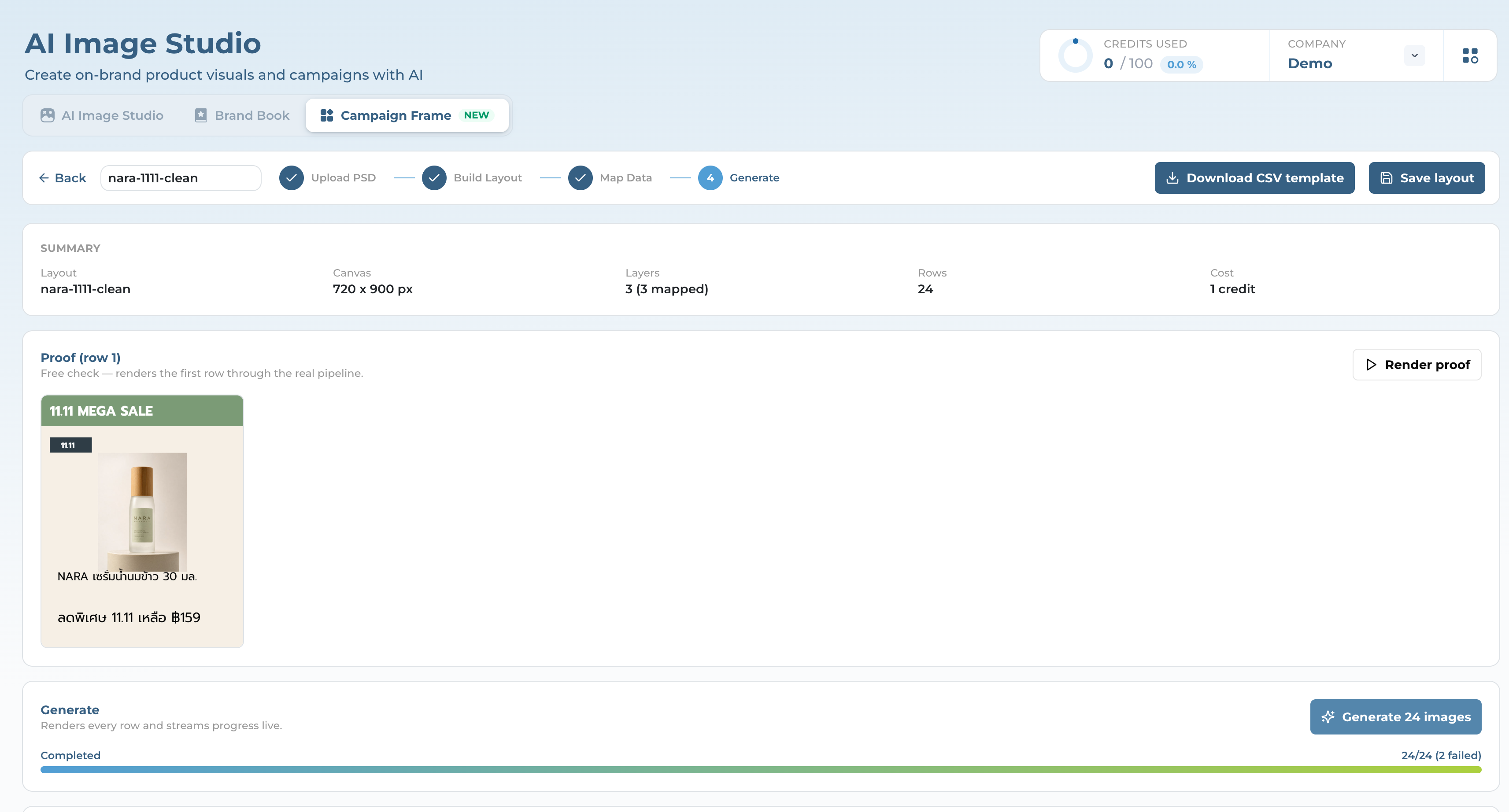
The Generate step summary card showing Rows 24 and Cost 1 credit, a free row-1 proof render, and a completed progress bar reading 24/24 with 2 failed
Step 4

Proof first — it is free

  • The summary card shows the layout, the canvas size, how many layers are mapped, the row count, and the cost.
  • "Render proof" draws row 1 through the real pipeline. It costs nothing and you can run it as often as you like.
  • The proof is the only place warnings reach you — a mistyped handle, text that had to be trimmed. During the batch those are silent.
  • Then "Generate N images". Progress streams live; if the connection drops the page falls back to polling.
Cost: 1 credit. That is for the whole batch. 24 rows, 500 rows — one credit.
Ai-ssistance EcommerceIQ — Market Insights
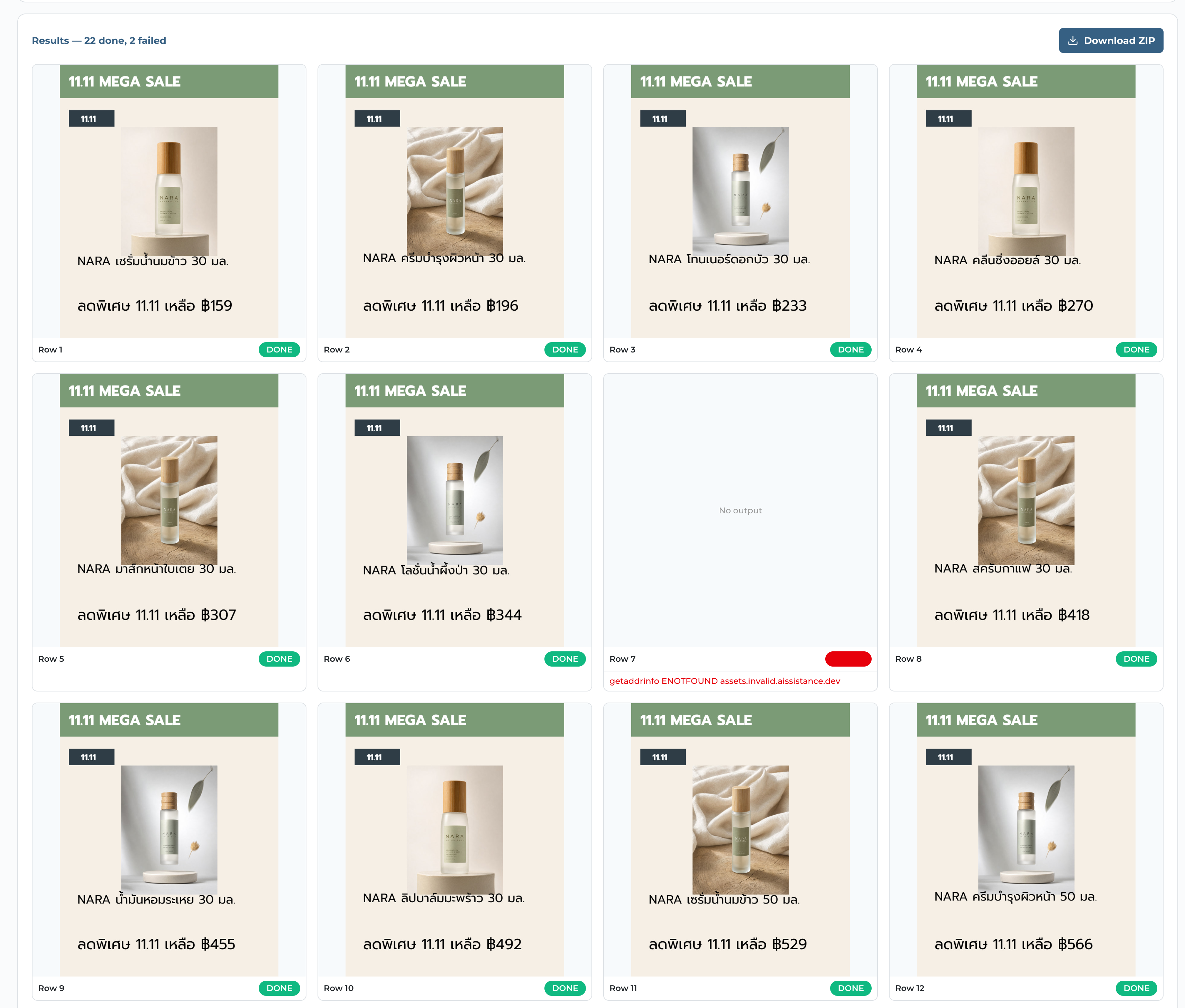
The Results grid reading 22 done, 2 failed, with green DONE badges on finished rows and Row 7 showing a blank red marker over a getaddrinfo ENOTFOUND error printed underneath
Step 4

Results, and getting the files out

  • Every row gets a card with a green DONE badge when it works; a failed row shows only a plain red marker and its reason underneath, not a FAILED label.
  • A batch with some failures is normal — it lands as "completed with errors" and still costs the one credit.
  • Download ZIP is the only way out; there is no per-image download. The ZIP holds the rows that succeeded.
  • Recent campaigns on the landing screen keeps every past batch — re-download any time.
Ai-ssistance EcommerceIQ — Market Insights
06

When the output looks wrong

The handful of things people actually hit

Ai-ssistance EcommerceIQ — Market Insights
Troubleshooting

The usual suspects, and every limit

The handful of things people actually hit — and the numbers behind every ceiling in the product.

An image is simply missing Almost always a handle that does not match. Handles are exact, lowercase, dash-separated. Run the proof — it names the layer.
Text came out smaller, or trimmed It did not fit, so it was shrunk to your minimum and then trimmed with "…". Widen the frame or lower the minimum.
A date printed as a timestamp .xlsx turns date cells into ISO timestamps. Re-save as CSV.
Continue is greyed out Step 2 wants a visible Primary product image layer; step 3 wants a sheet with at least one row.
PSD.psd · up to 200 MB · RGB with composite · ≤ 8000 px on the longest side
Spreadsheet500 rows / 40 columns
Layers100 per template
AssetsPNG, JPEG or WebP · up to 5 MB
FontsTTF or OTF · up to 5 MB
Concurrencyone generation per template at a time
Ai-ssistance EcommerceIQ — Market Insights
EcommerceIQ — Market Insights Ai-ssistance

Start your first frame

One PSD and one spreadsheet is all it takes.

aissistance.us